

Deploy NetLogo (x64) with Intune
Overview
This guide covers deploying NetLogo (x64) as a Windows app (Win32) in Microsoft Intune, including packaging, configuration, detection rules, assignments, and troubleshooting.
| App name | NetLogo (x64) |
| Publisher | CCL |
| Version | 7.0.0 |
| App type | Windows app (Win32) |
| Install behavior | System |
Download Installer
| Installer file | NetLogo-7.0.0-64.msi |
| Download source | https://ccl.northwestern.edu/netlogo/7.0.0/NetLogo-7.0.0-64.msi |
Create Intune Package
- Create a working folder on your local machine (for example: D:\Intune).
- Create two subfolders inside the working folder: Input and Output.
- D:\Intune\Input: Folder for all setup files. All files in this folder are compressed into an .intunewin file.
- D:\Intune\Output: Stores the generated .intunewin package.
- Place NetLogo-7.0.0-64.msi in the Input folder.
- Download the Microsoft Win32 Content Prep Tool (IntuneWinAppUtil.exe) and place it in D:\Intune.
The folder structure should look like this before running the packaging tool:
D:\Intune
├── Input
│   └── NetLogo-7.0.0-64.msi
├── Output
└── IntuneWinAppUtil.exe- Open Windows PowerShell or Command Prompt as Administrator.
- Navigate to the working folder: cd D:\Intune.
- Run the following packaging command to generate the NetLogo-7.0.0-64.intunewin package. For packaging background, see .intunewin package preparation.
IntuneWinAppUtil.exe -c .\Input -s "NetLogo-7.0.0-64.msi" -o .\Output- After the command finishes, the generated package should be available in the D:\Intune\Output folder.
D:\Intune
├── Input
│   └── NetLogo-7.0.0-64.msi
├── Output
│   └── NetLogo-7.0.0-64.intunewin
└── IntuneWinAppUtil.exe
Note: Windows application size is capped at 30 GB per app.
Create the App
Open the Microsoft Intune admin center, then create the Win32 app shell and upload the package.
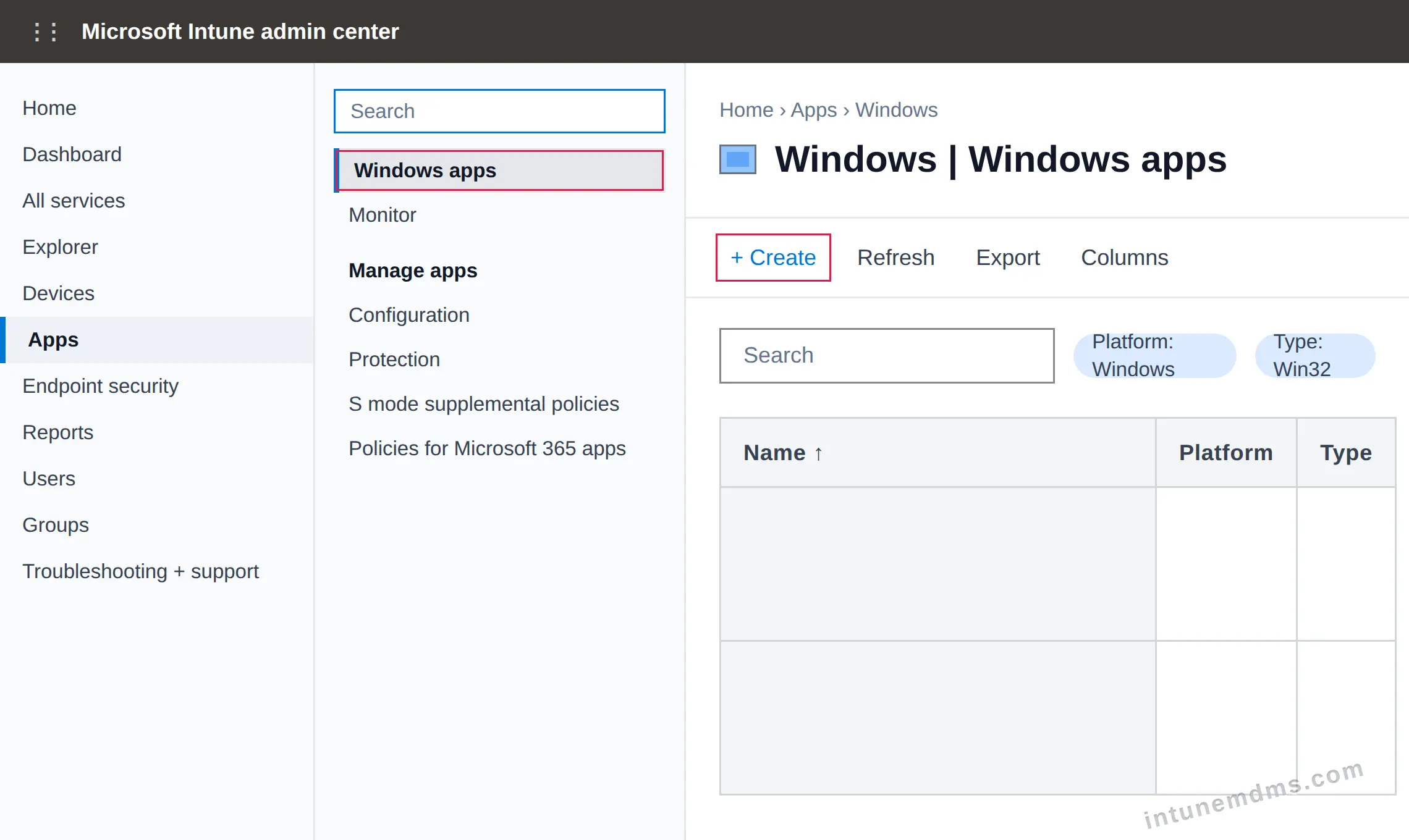
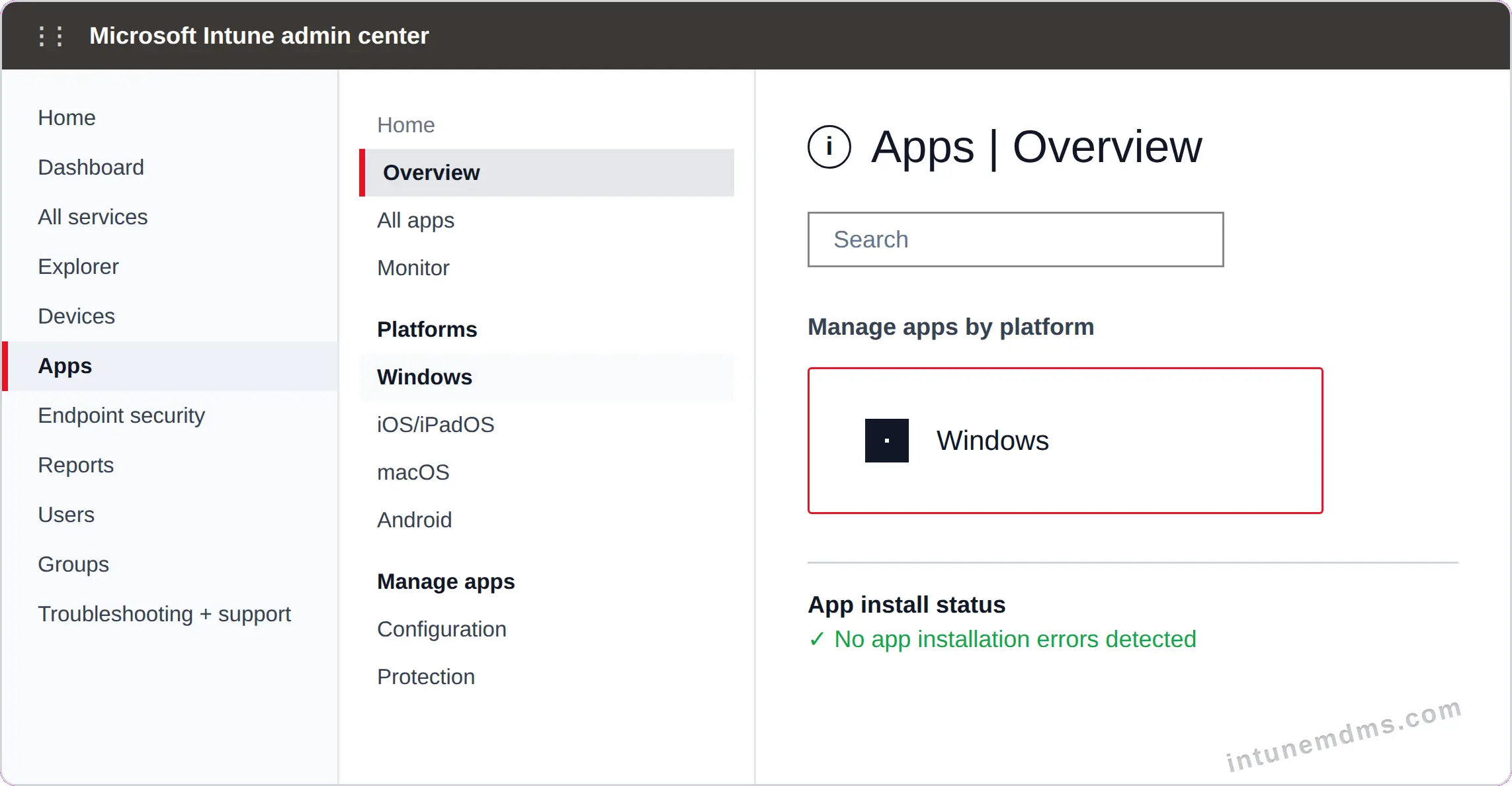
Go to Apps → Overview, then choose the Windows platform card (or expand Platforms and select Windows).

Click Create to add a new app.
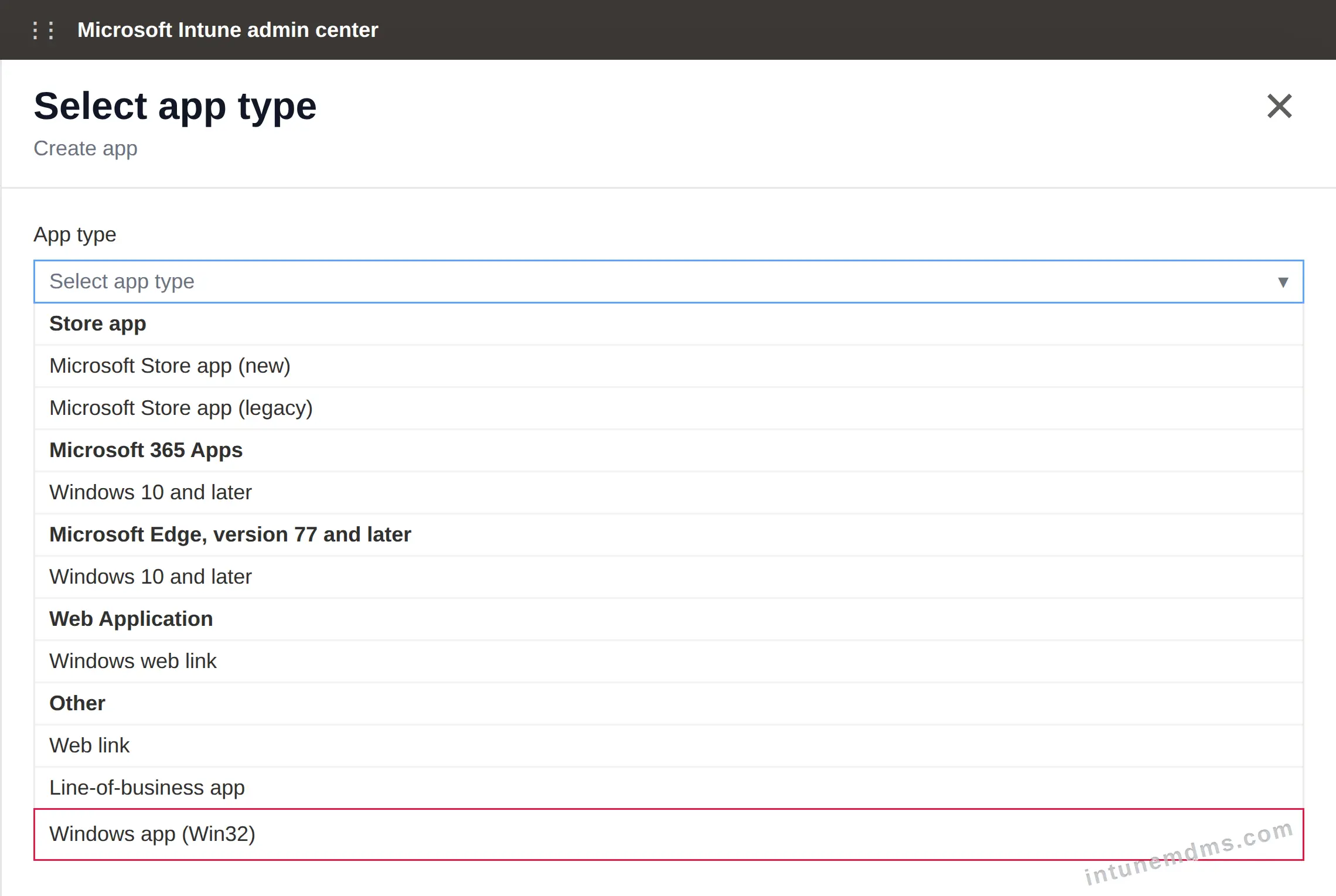
In the Select app type panel, choose Windows app (Win32).
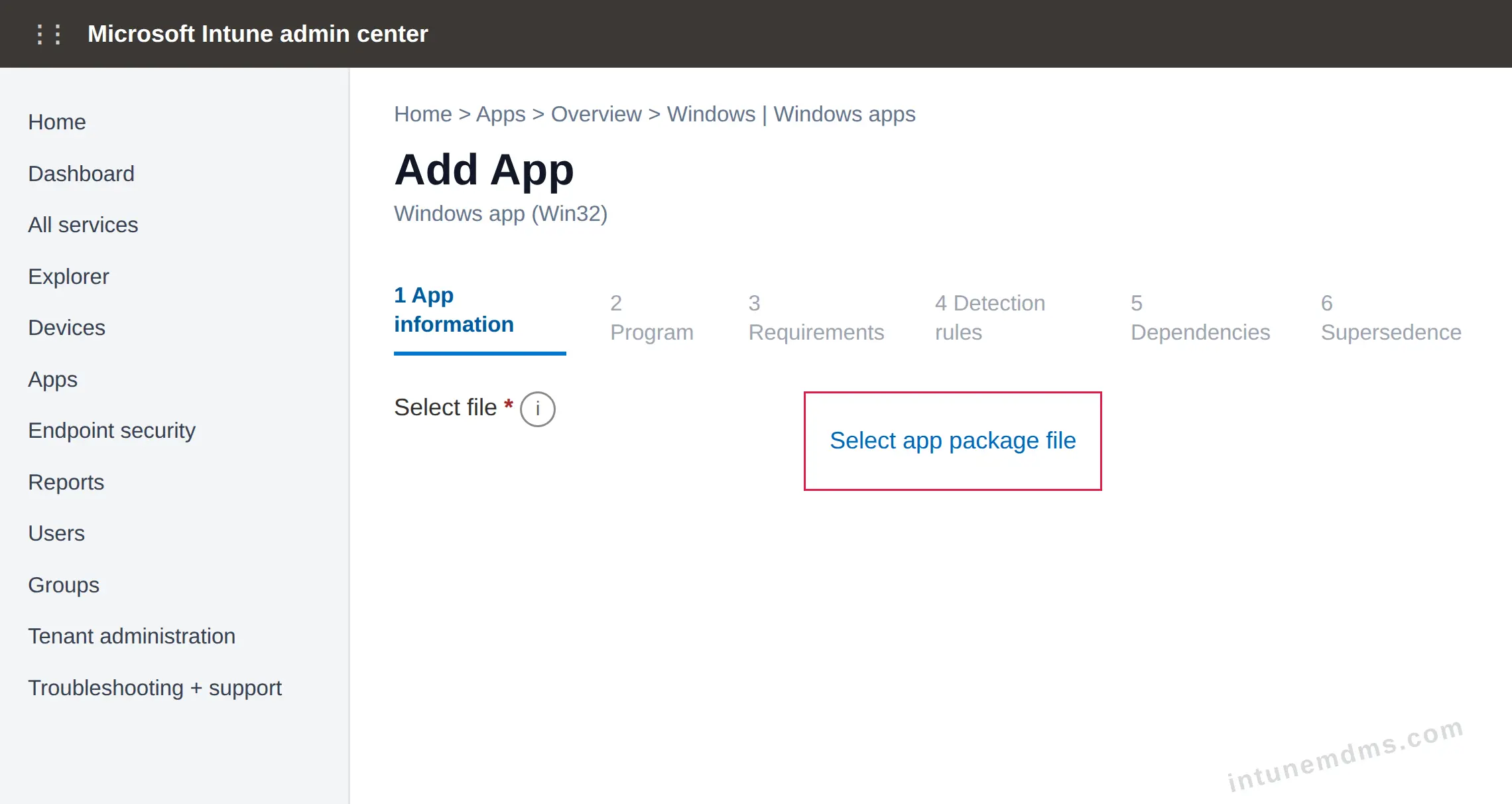
On the App information page, click Select app package file.
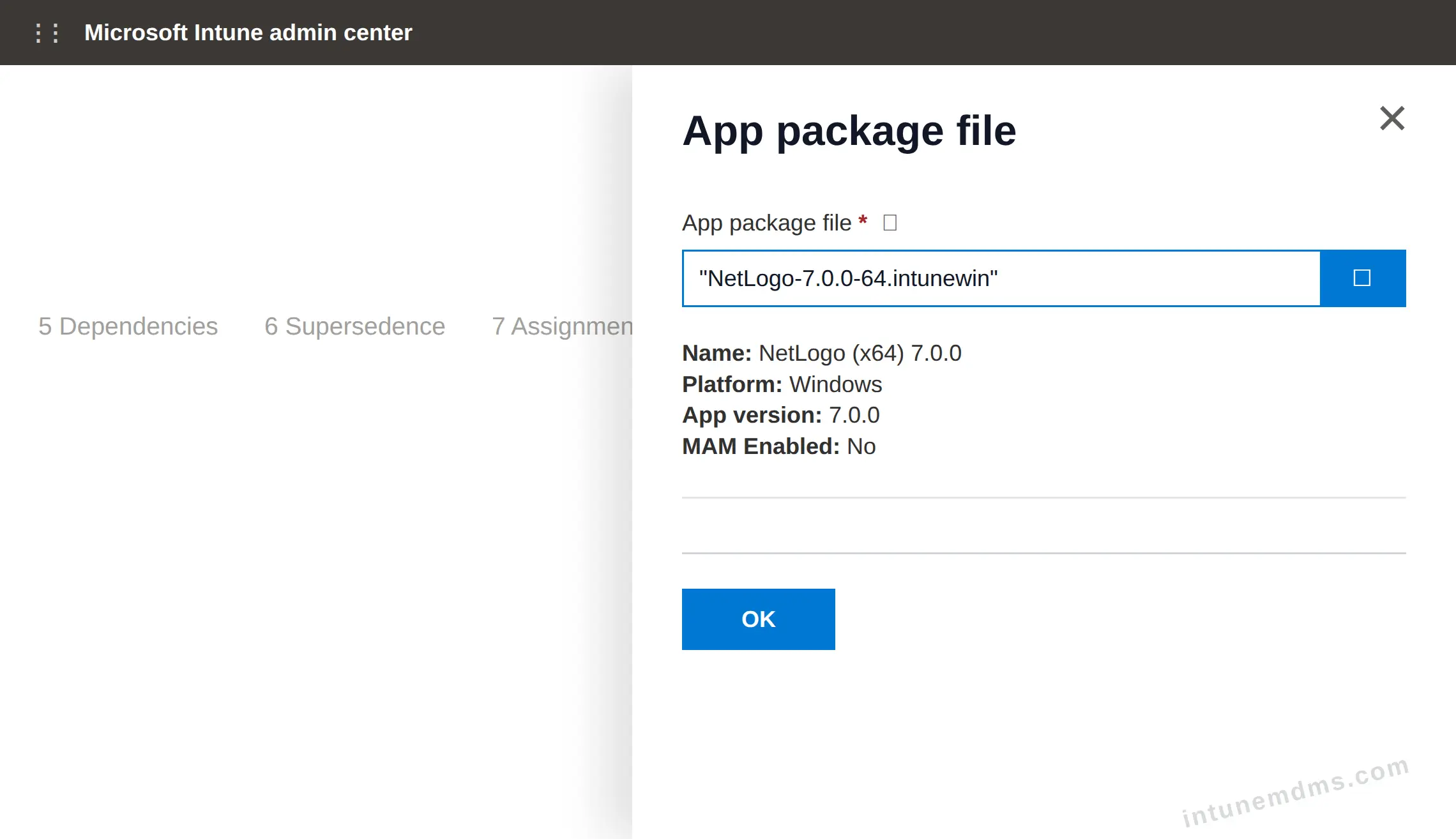
Upload NetLogo-7.0.0-64.intunewin, then confirm the App package file panel.
Configure App Settings
Review the app information that appears in Intune and Company Portal.
Name NetLogo (x64) 7.0.0 Description NetLogo (x64) 7.0.0 Publisher CCL App version 7.0.0 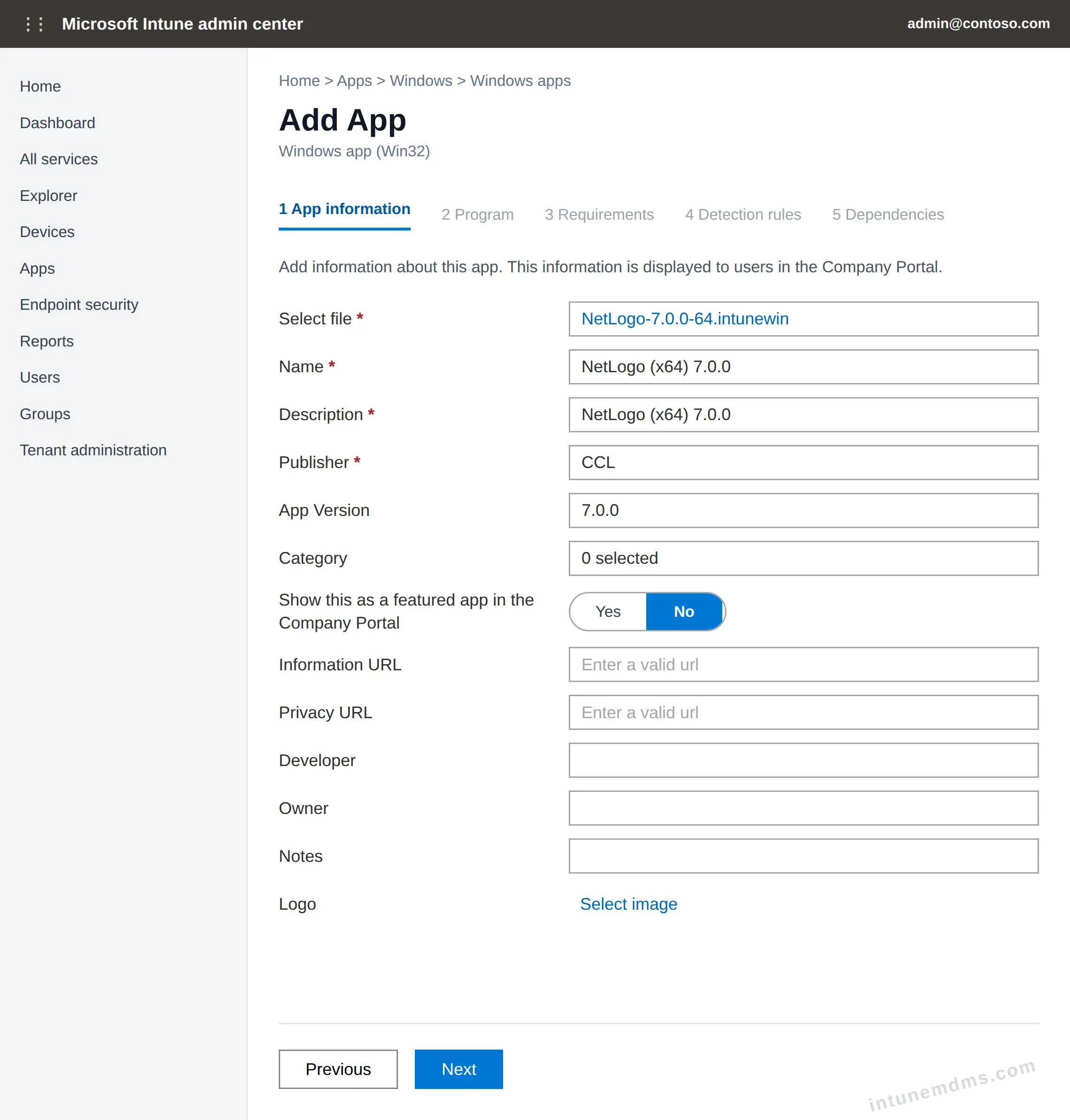
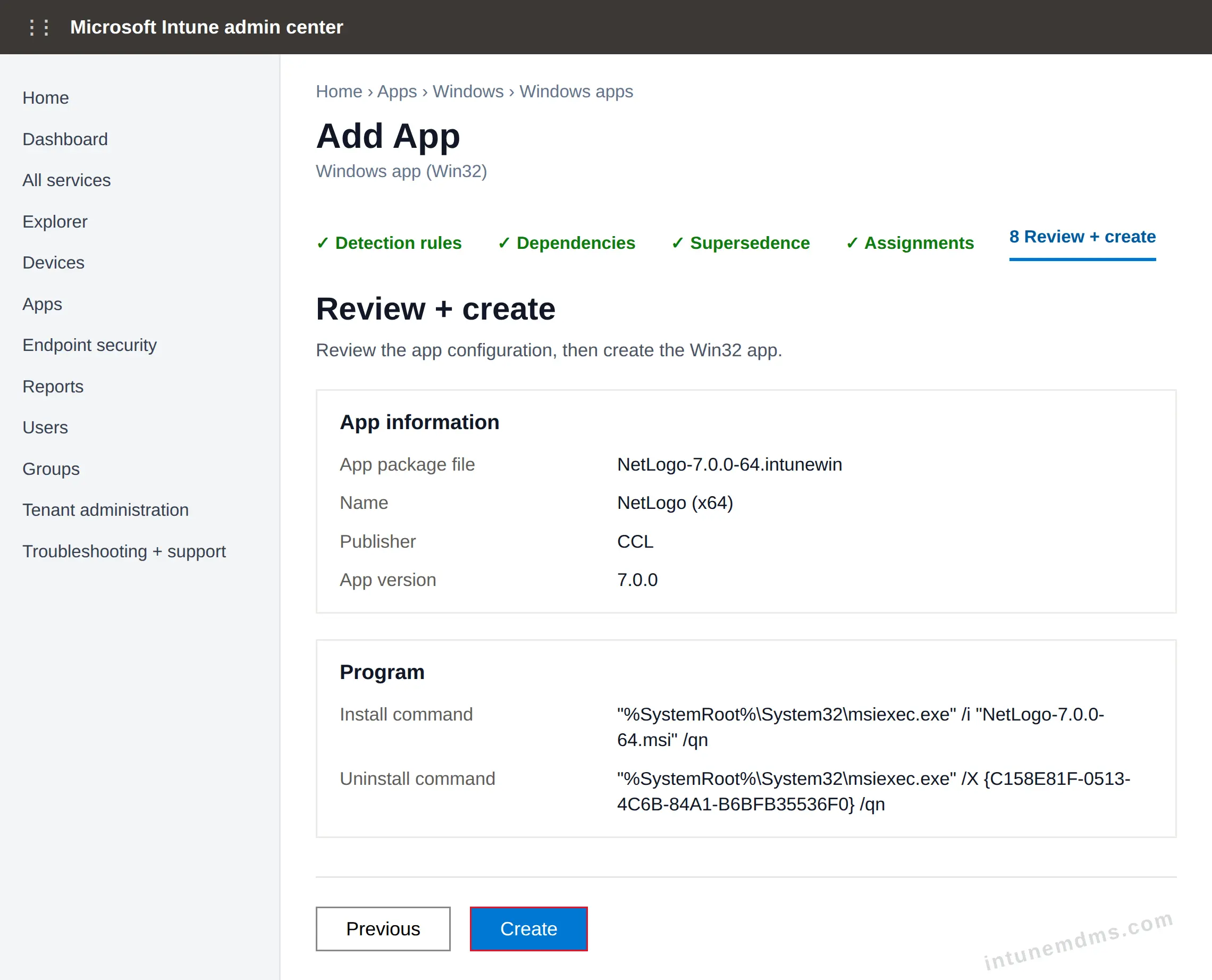
Configure how Intune installs and uninstalls the app. Enter the values below in the Program tab and leave all other settings unchanged. See Intune install and uninstall commands for command guidance.
Install/Uninstall type Command line Install command “%SystemRoot%\System32\msiexec.exe” /i “NetLogo-7.0.0-64.msi” /qn Uninstall command “%SystemRoot%\System32\msiexec.exe” /X {C158E81F-0513-4C6B-84A1-B6BFB35536F0} /qn Install behavior System Device restart behavior App install may force a device restart Allow available uninstall Yes Installation time required 60 minutes Return codes Keep the default Intune return codes. 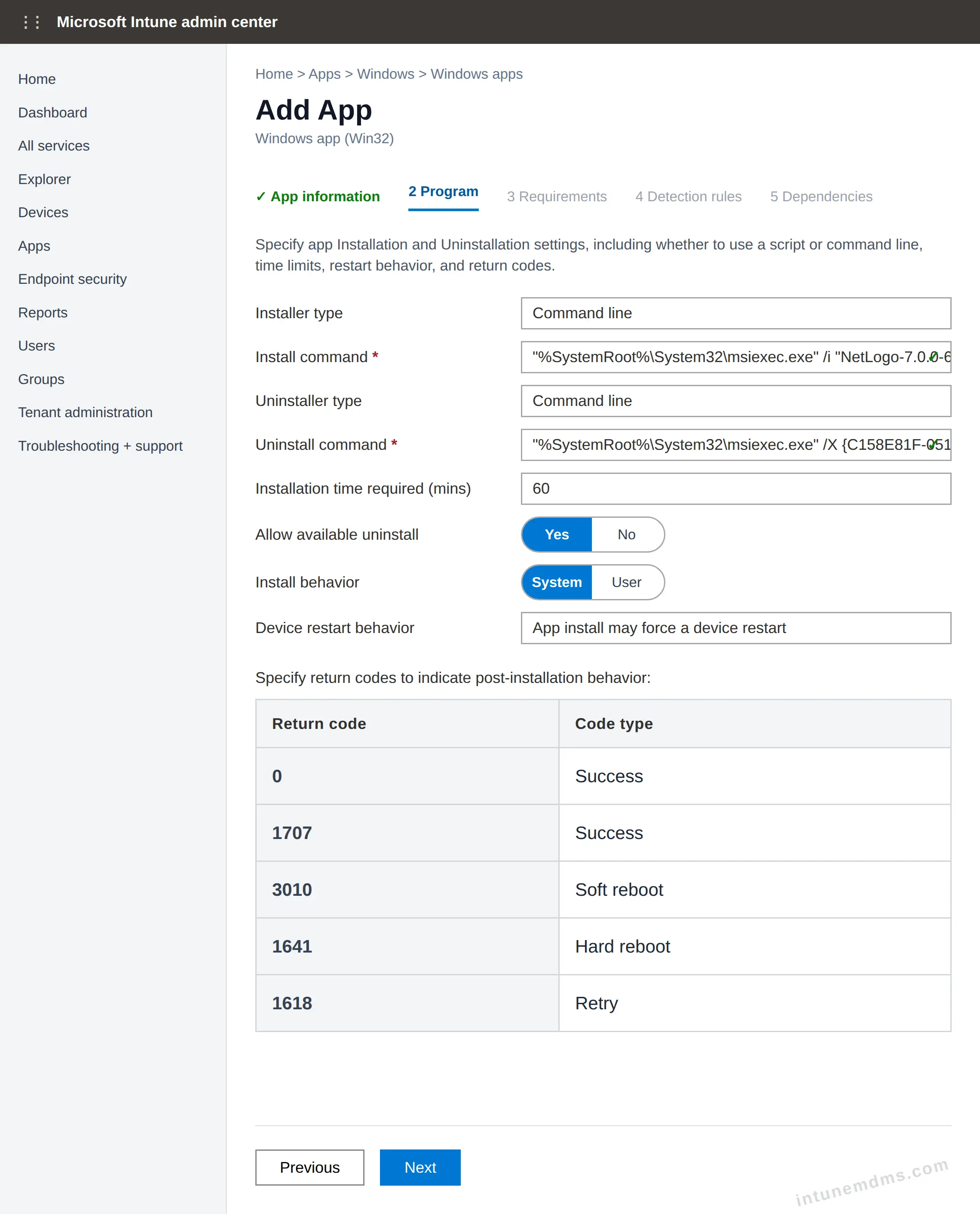
Define which devices are eligible to install the app. Learn more in Intune requirements explained.
Check operating system architecture No. Allow this app to be installed on all systems. Minimum operating system Windows 10 1607 Additional requirement rules No requirements are specified. 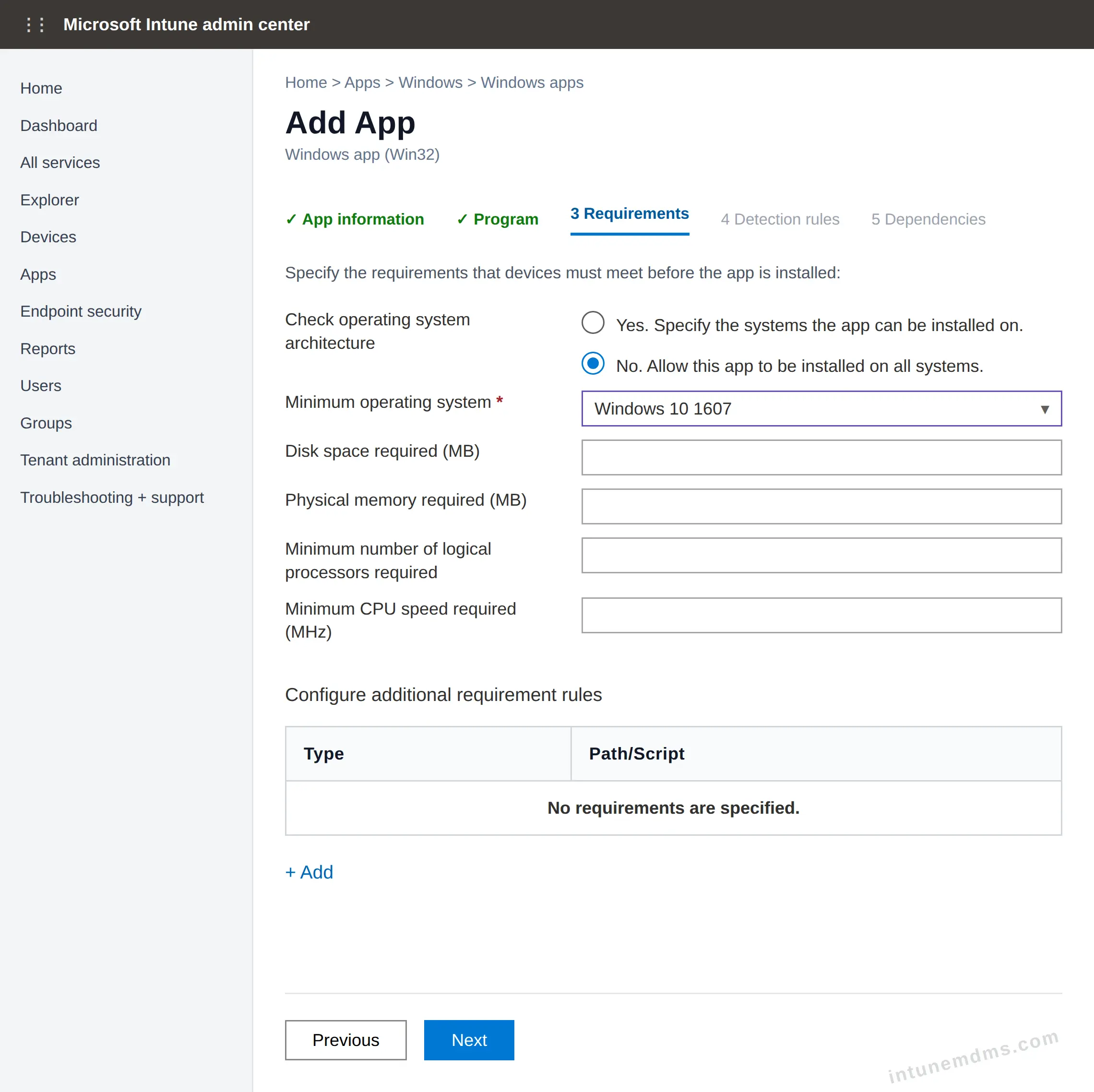
On the Detection rules page, set Rules format to Manually configure detection rules. For the concept, see Intune detection rules explained.
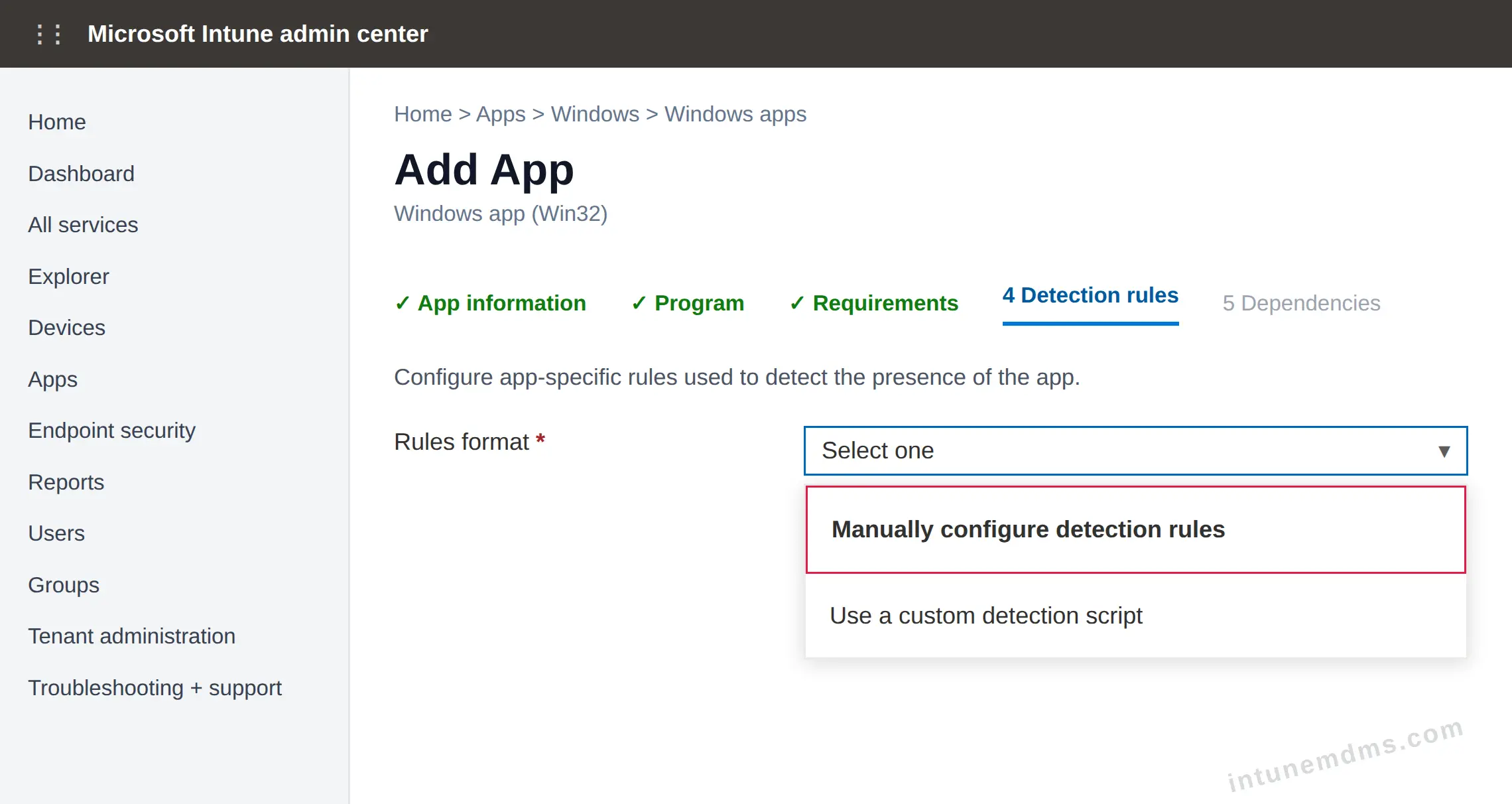
Click Add to create a detection rule.
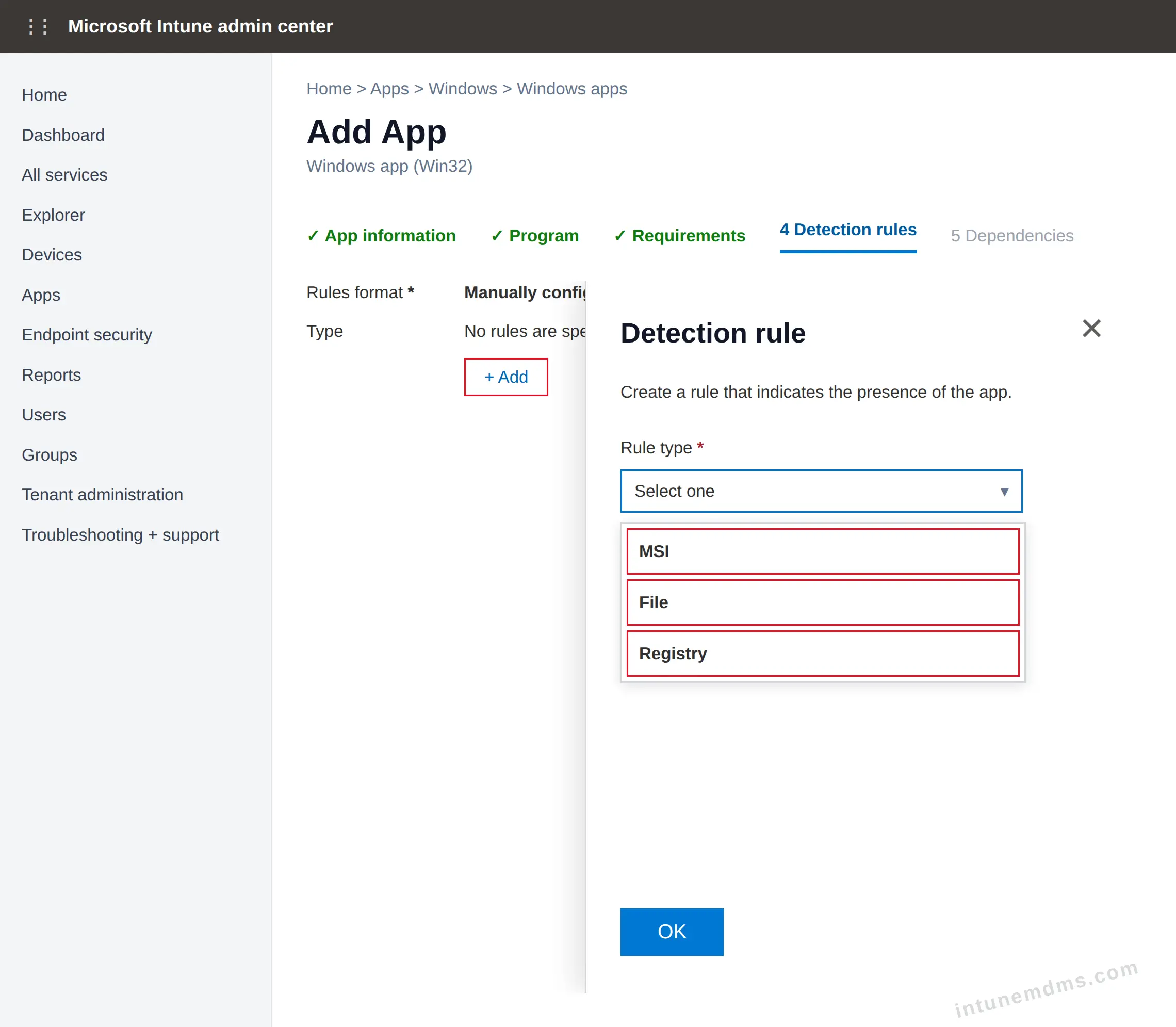
Select the appropriate Rule type (MSI, File, or Registry) based on the installer. Use the table below as a reference.
# Type Target Method Value 1 File %ProgramFiles%\NetLogo 7.0.0\NetLogo.exe String/version comparison equals 1.0.0.0 2 Registry HKEY_LOCAL_MACHINE\SOFTWARE\Microsoft\Windows\CurrentVersion\Uninstall\{C158E81F-0513-4C6B-84A1-B6BFB35536F0} String comparison equals 7.0.0 Associated with a 32-bit app on 64-bit clients: No.
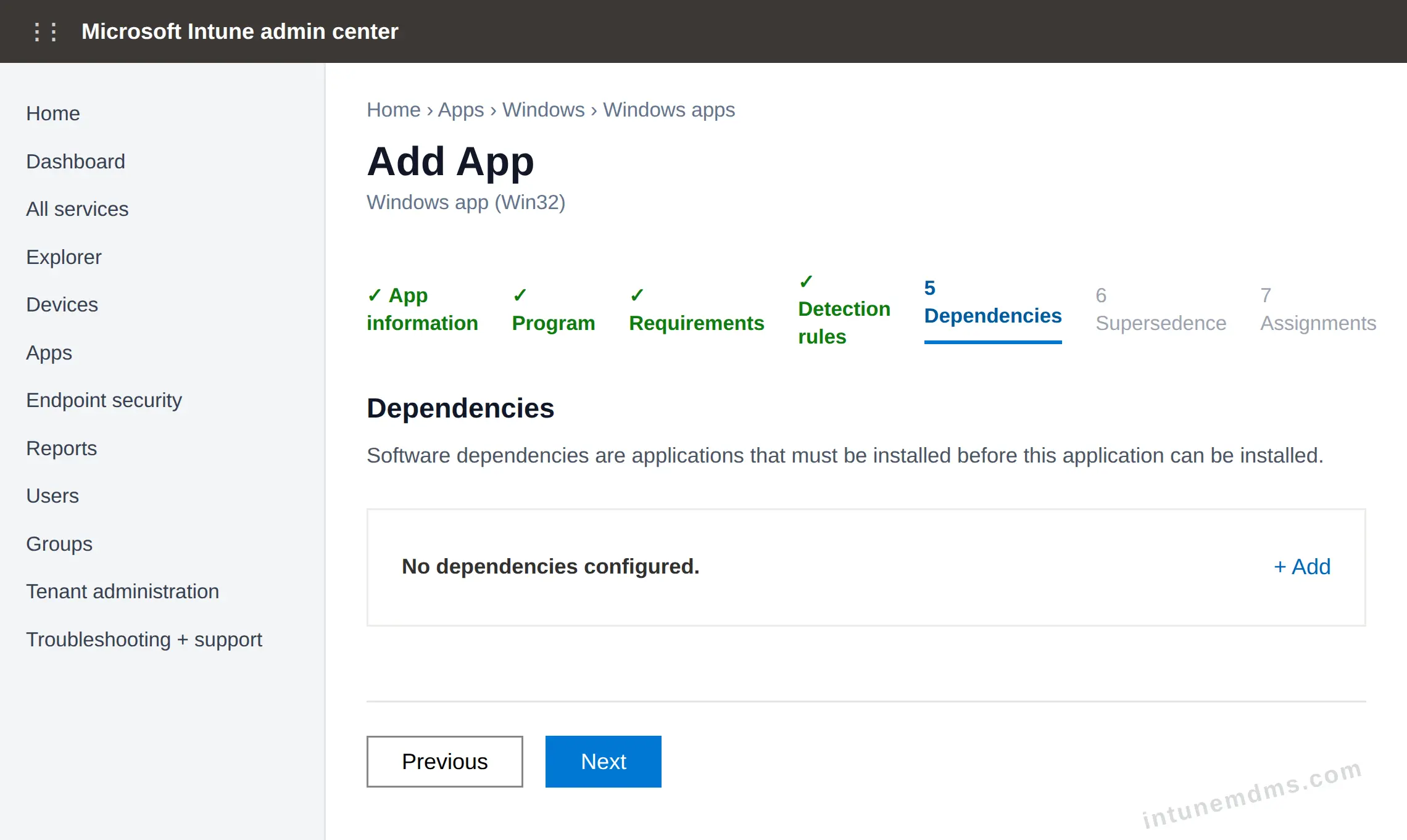
On the Dependencies page, click Next unless this app must install after another app.
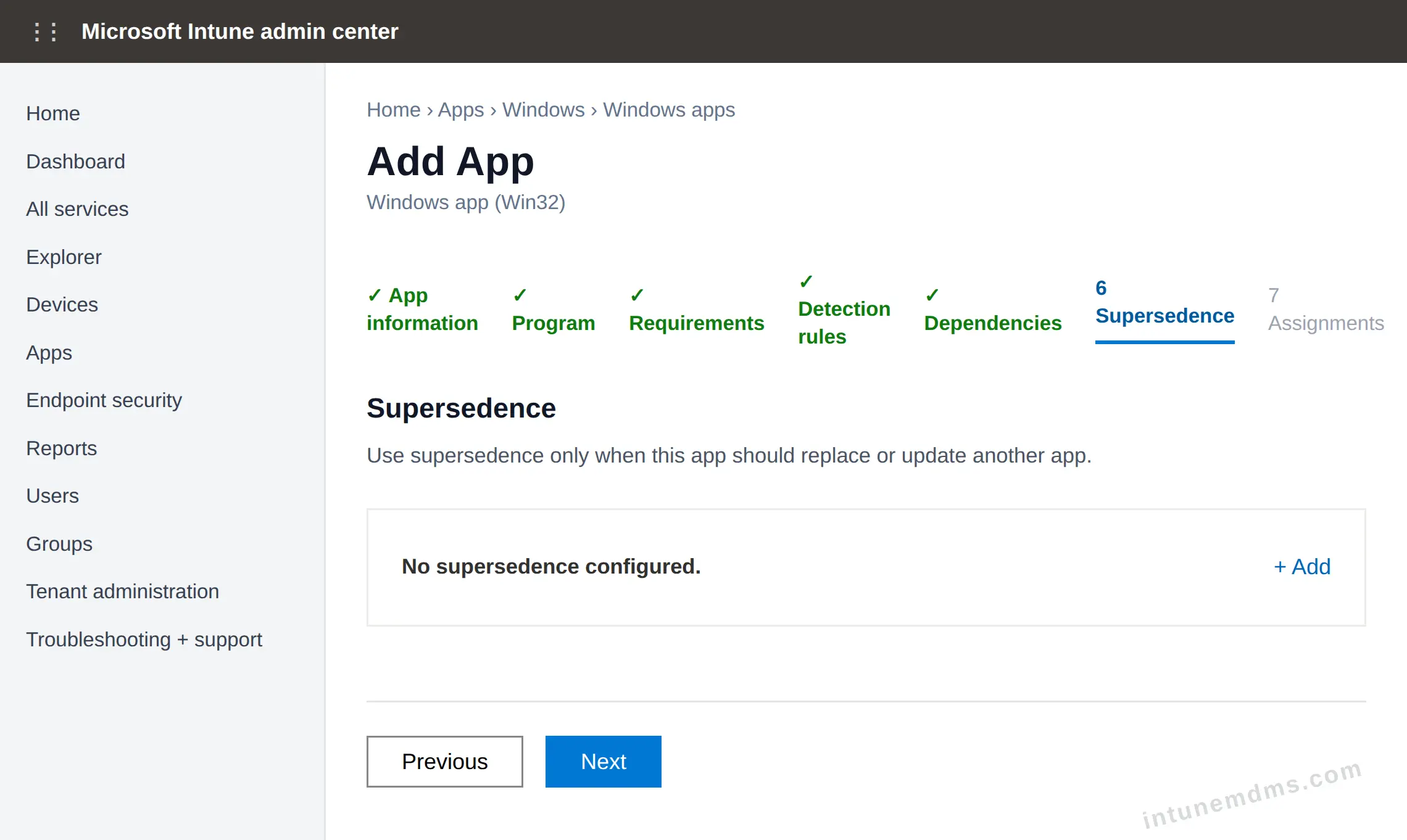
On the Supersedence page, click Next unless this app replaces an older app.
Assign and Deploy
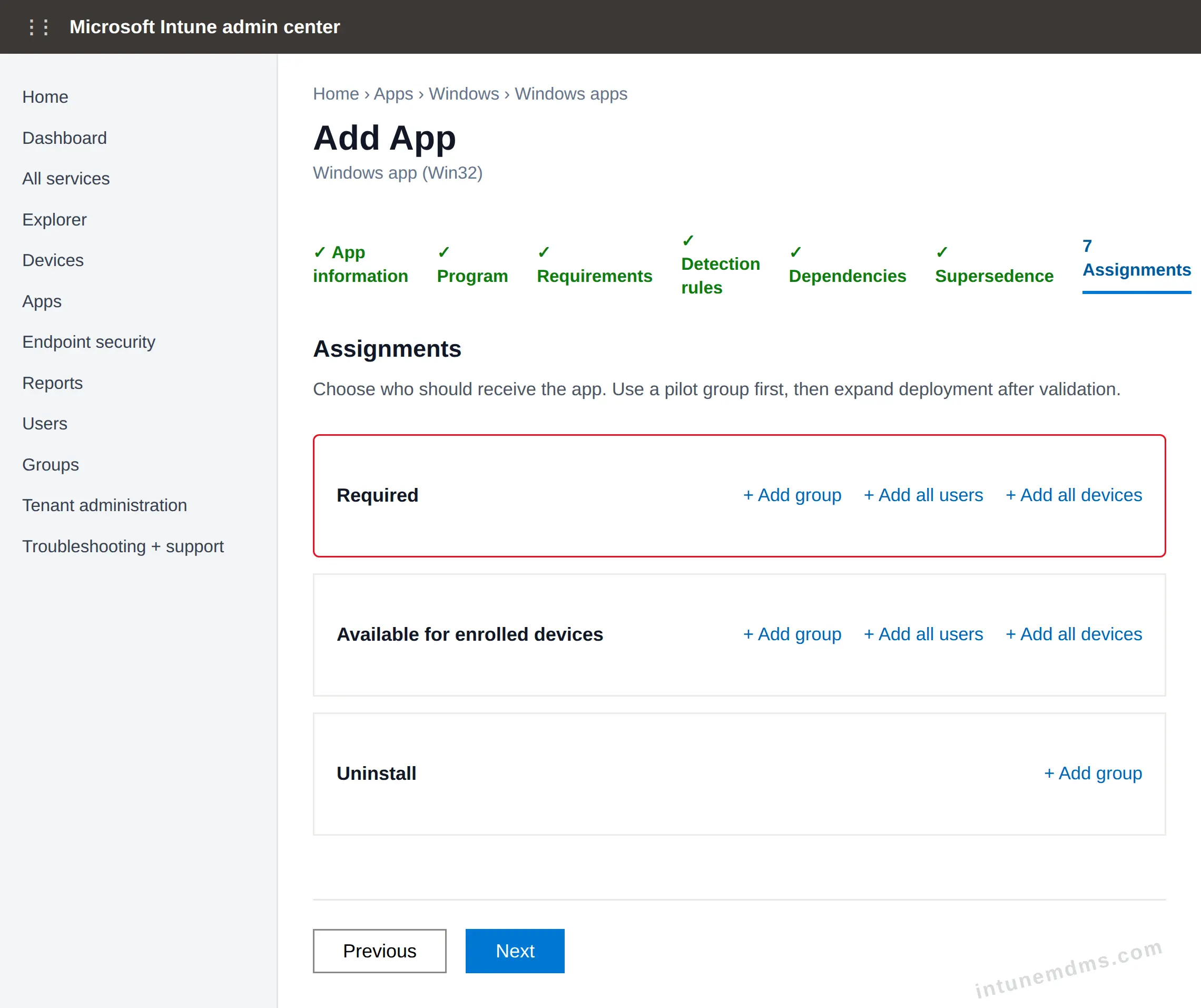
On the Assignments page, add the target groups, users, or devices, then click Next.
Assignment options
Required Installs the app automatically on targeted users or devices. Use this after install, uninstall, and detection are verified.
Available for enrolled devices Shows the app in Company Portal so users can install it manually. Use this for pilot users, IT validation, or optional apps.
Uninstall Automatically removes the app from targeted devices. Use this when you need to retire or remove the app.
Note: Start with a dedicated test group before broad deployment. For example, use the Required assignment option to automatically install the app on targeted devices.
Review all configuration details, then click Create to deploy the app.
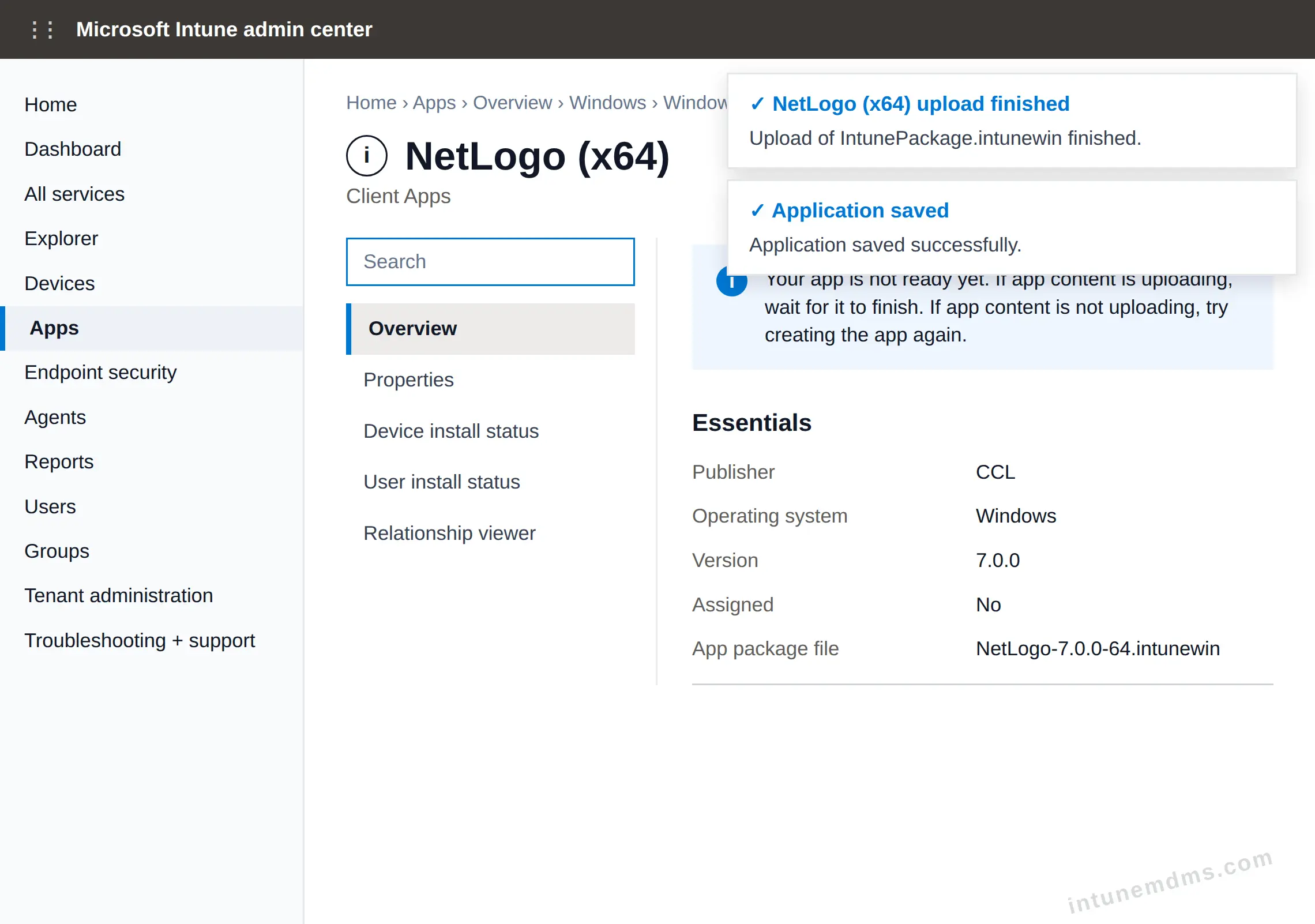
Verify the app in Intune. Confirm that the upload is finished, the application is saved, and the app overview shows the expected package details.
Note: If Intune says the app is not ready yet, wait a few minutes and refresh the page.
Sync the Intune Policies
Windows devices normally check in with Intune every 8 hours. During pilot testing, use one of the sync options below to speed up app delivery. See how Intune device sync works for more detail.
End User Experience
After the device receives the policy, the end-user experience depends on the assignment type. Available apps appear in Company Portal so users can install them manually without admin rights. See Required vs Available app assignments for the assignment differences.
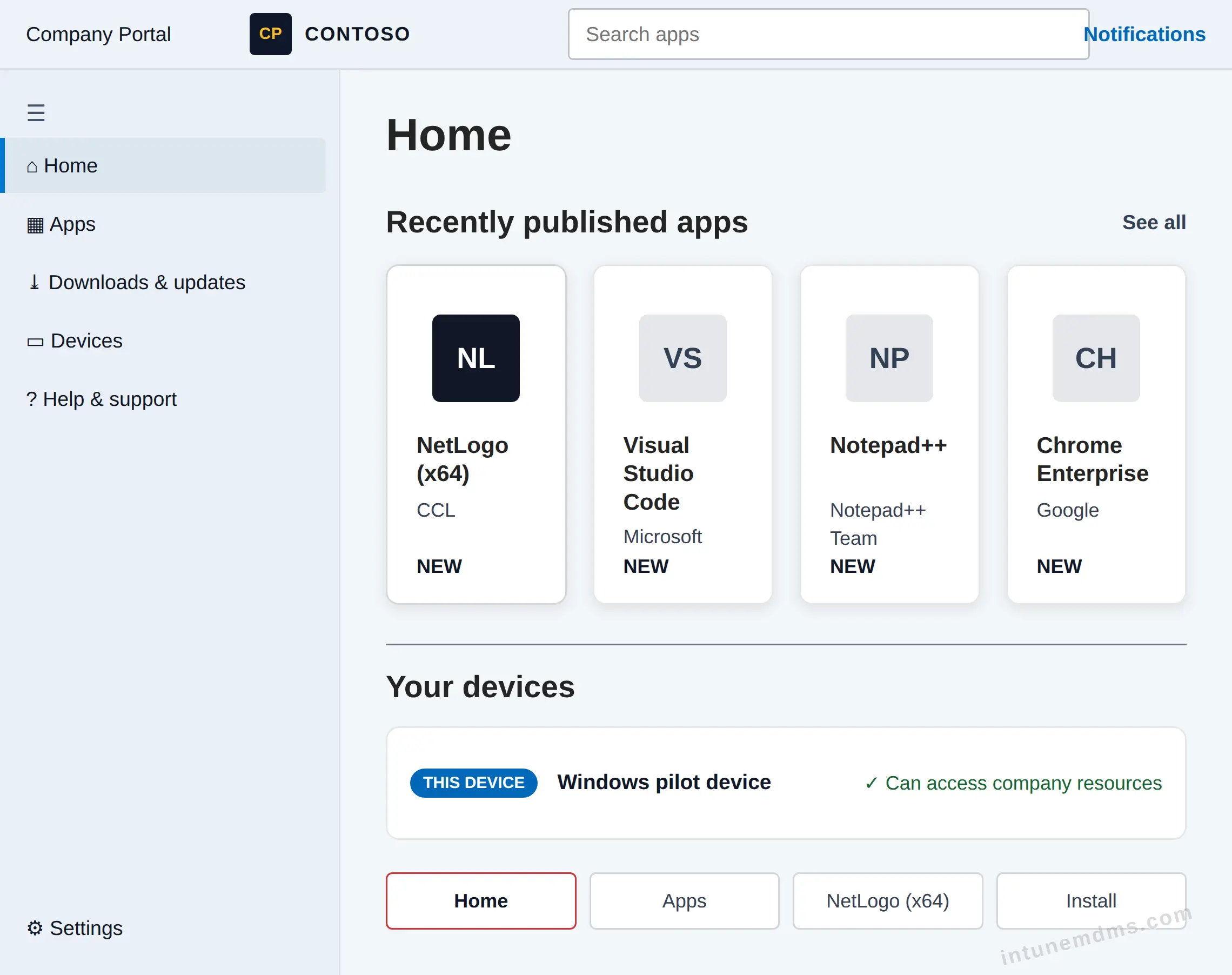
Required apps install automatically. During installation, Windows may show notifications from Microsoft Intune Management Extension. Users can see the app move from installing to installed.
Note: Notification visibility depends on Windows notification settings and Intune app deployment behavior.
Tracking the App Deployment
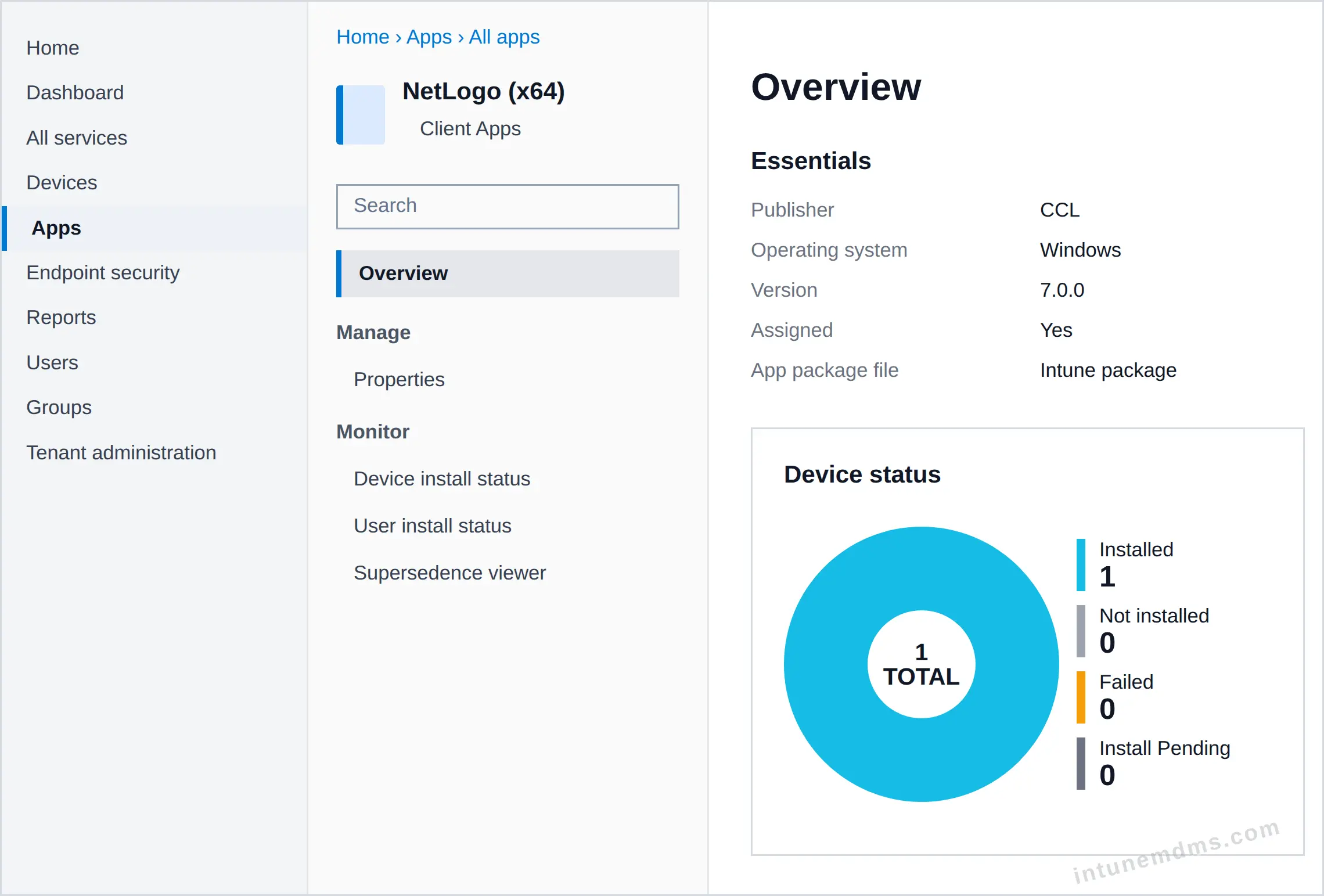
To check deployment status in the Intune admin center, go to Apps and select the app. The Device status chart shows how many devices have installed it.
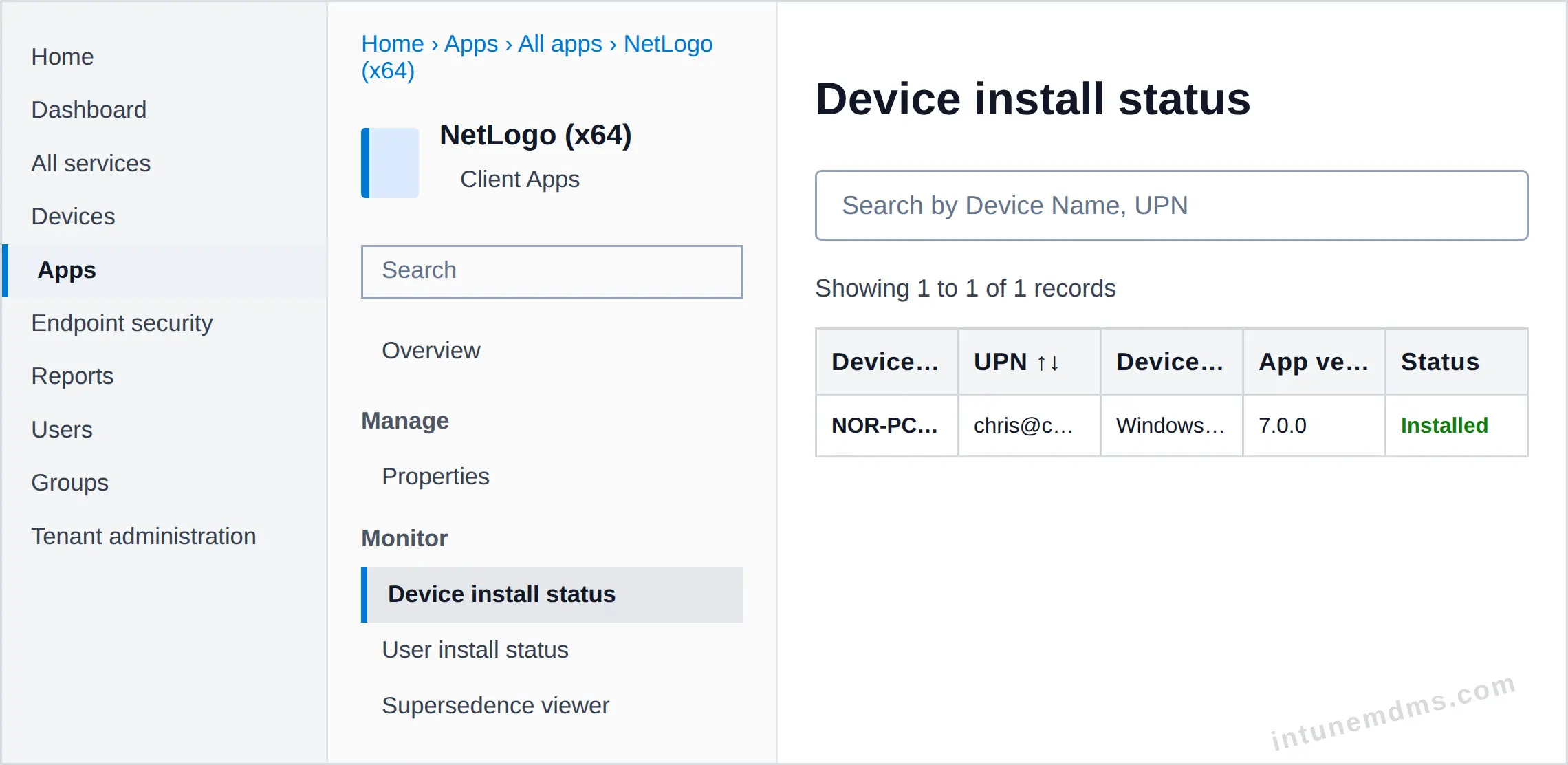
Click Device install status or User install status to see the list of devices or users with their installation status.
Uninstall the App from Intune
When the app is no longer needed, remove it by changing the Intune assignment to Uninstall for the target group.
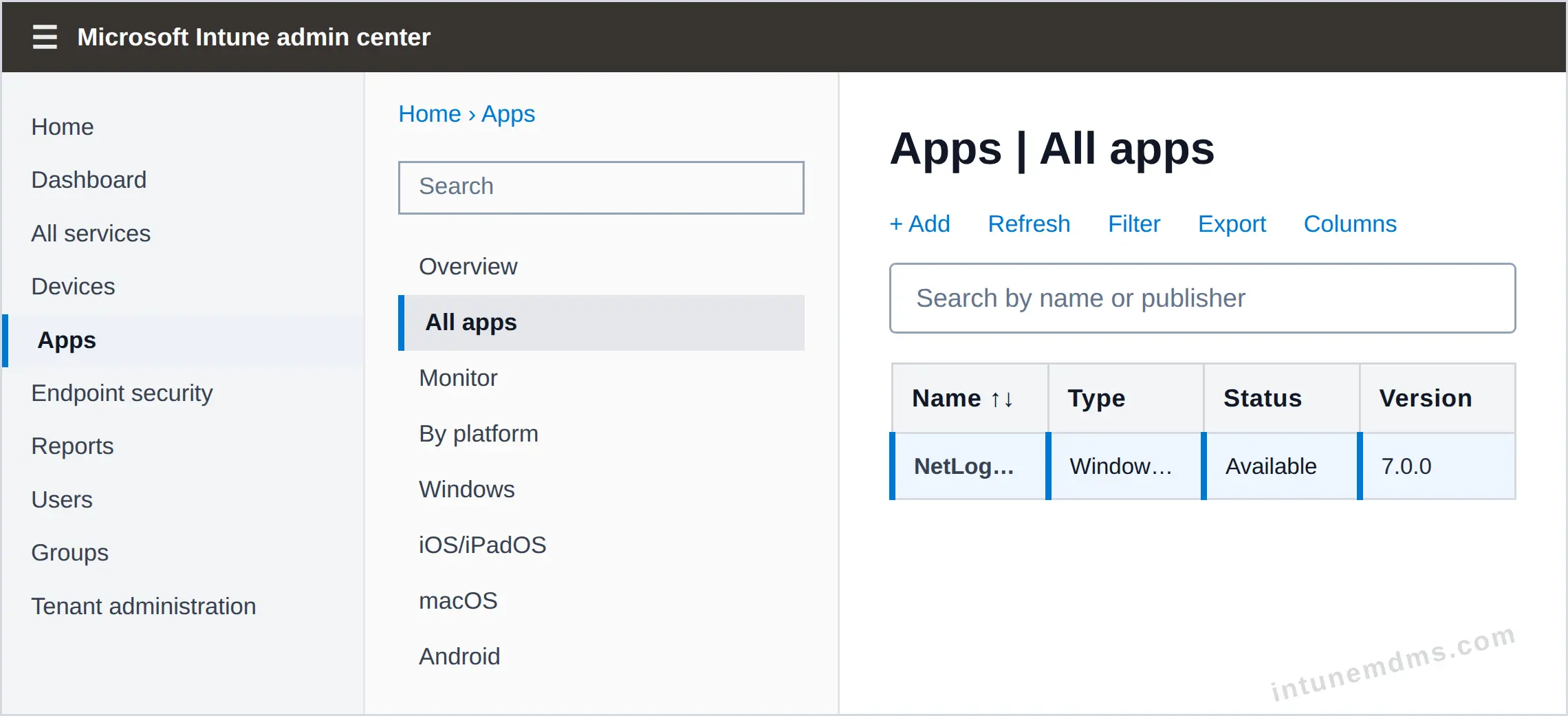
Go to Apps → All apps, then select the app you want to remove.
Open Properties and click Edit next to Assignments.
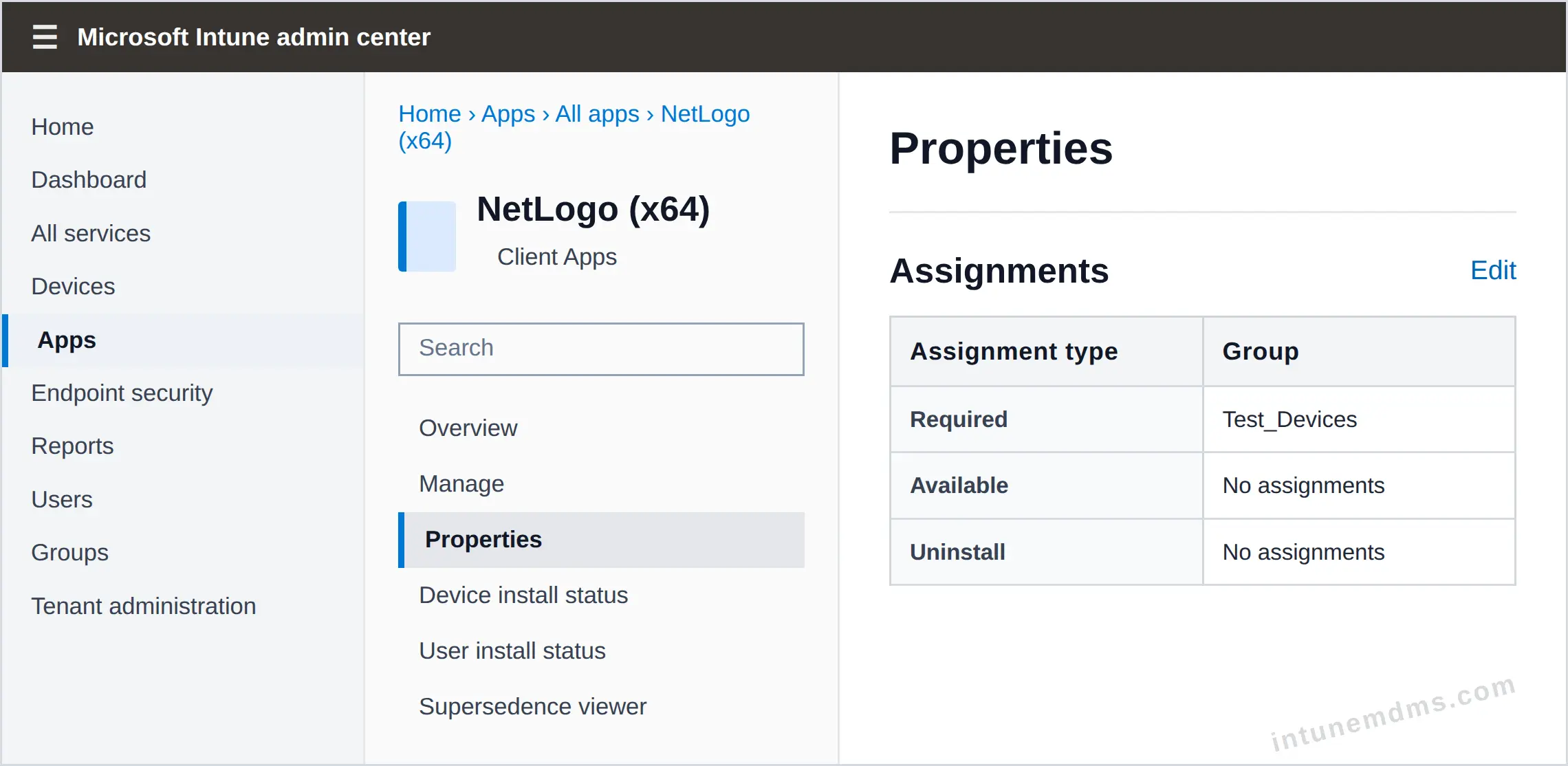
Move the target group to the Uninstall section.
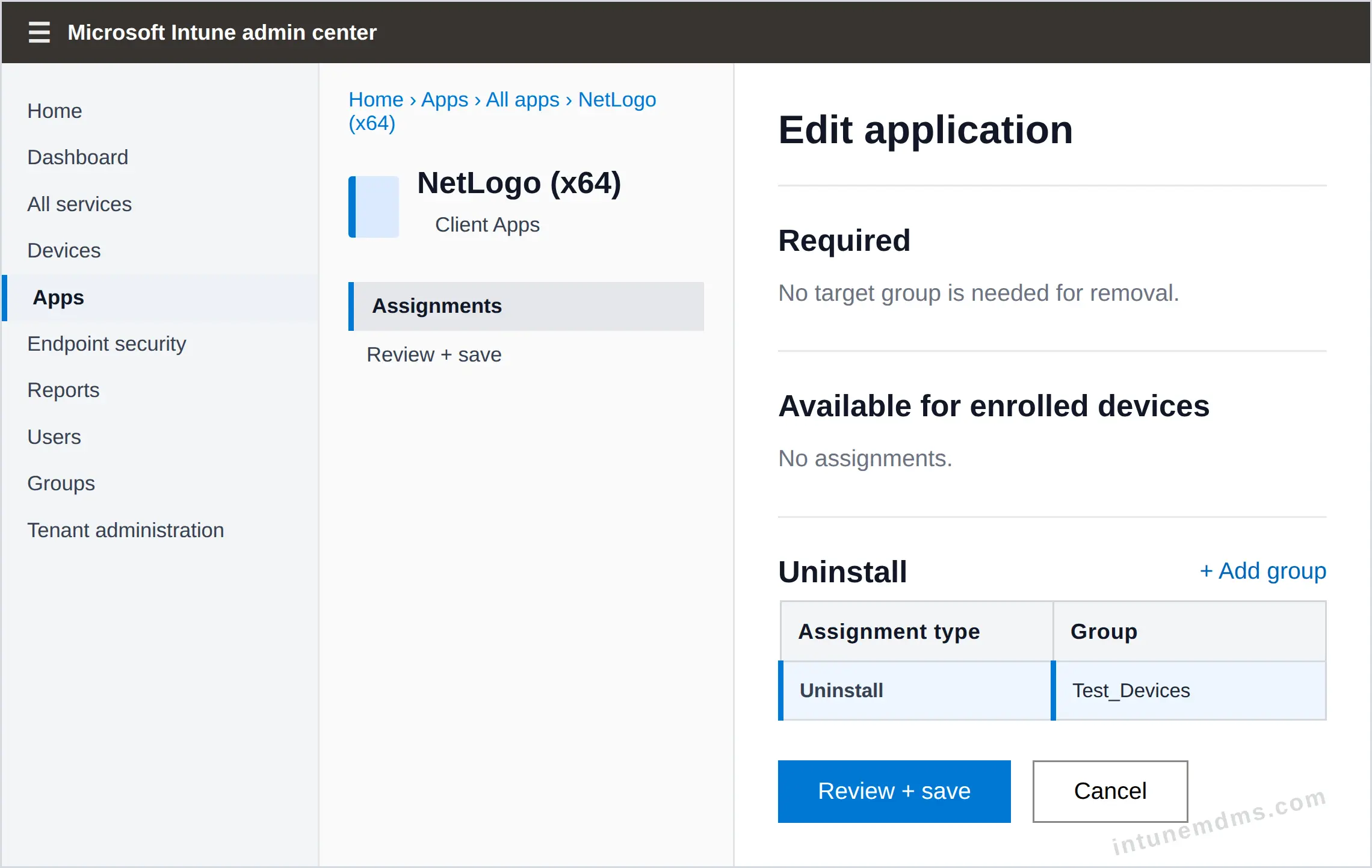
Review the assignment, then click Save. Devices will remove the app after the policy is applied.
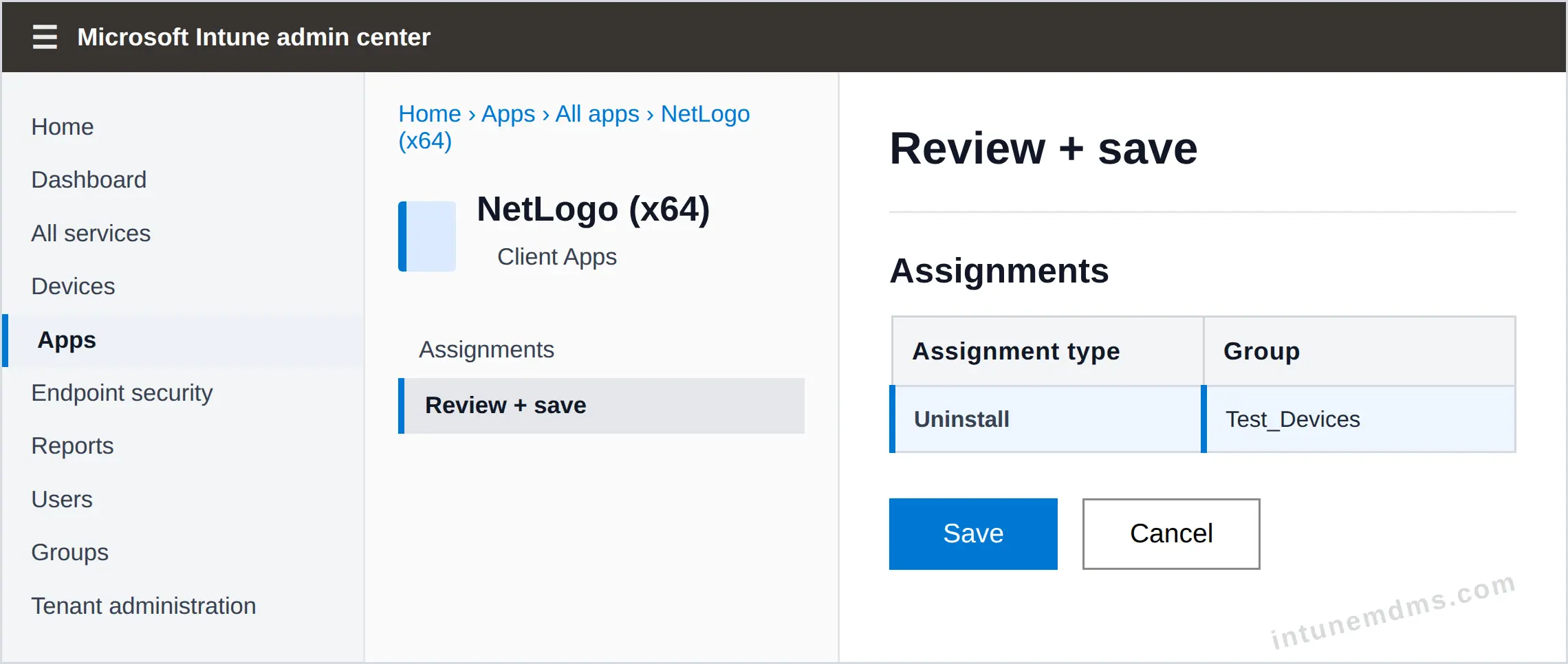
After saving, the uninstall policy is applied. The device removes the app automatically.
Note: The uninstall process may take a few minutes depending on device check-in and policy sync timing.
Troubleshooting
If the deployment does not behave as expected, use the checks below to quickly identify common issues before modifying the configuration. For deeper debugging, review Intune Management Extension logs.
| Issue | What to check |
|---|---|
| App does not install | Confirm the app is assigned to the correct user or device group. |
| App shows as failed | Review the install command, silent switch, and Intune Management Extension logs. |
| Detection rule fails | Check the file path, MSI product code, registry key, or detection value. |
| App is not visible in Company Portal | Confirm the assignment type is Available and the user is in the target group. |
| Install works manually but fails in Intune | Verify the install command runs silently under system context and does not require user input. |
| Uninstall does not run | Validate the uninstall command and confirm the app is assigned with uninstall intent. |
| Device has not received policy | Trigger a manual sync or wait for the next Intune device check-in. |
| App stuck on installing | Check if a restart is pending and verify no other installation is blocking the process. |
| Install fails due to context | Verify the app runs correctly under System or User context based on the install behavior. |
| Need detailed logs | Check Intune Management Extension logs in C:\ProgramData\Microsoft\IntuneManagementExtension\Logs for installation details and errors. |
New to Intune? Browse all Intune knowledge-base guides →
Leave a feedback
Include versions, steps, and any error text if you have them.